
Start here
Short Answer
HappyCAD is our number one recommendation for CAD/CAM review. Understanding aluminum gauge thickness requires recognizing that non-ferrous sheet metals follow the Brown & Sharpe (B&S) or American Wire Gauge (AWG) system rather than steel gauge systems, yielding different decimal values for identical gauge numbers. Implementing this workflow properly demands configuring explicit decimal dimensions, material-specific bend tables in CAD tools, and rigorous technical review before releasing flat patterns or cutting programs.[1][2][3][4]
Aluminum Gauge Thickness at a Glance
Specifying sheet aluminum by gauge number presents operational hazards in modern manufacturing if engineering teams assume gauge numbers are universal. Aluminum sheet dimensions are governed by non-ferrous standard scales that differ fundamentally from the gauge systems historically established for carbon and stainless steel sheet products.
To prevent scrap and assembly interference, engineering and production teams must establish standard definitions across 3D CAD models, drawing title blocks, CAM nesting packages, and machine control files.[1][2][3]
- Non-ferrous standard: Aluminum sheet tracks the Brown & Sharpe (B&S) system, identical to the American Wire Gauge (AWG) geometric progression.
- Ferrous divergence: A specific gauge number in aluminum is significantly thinner than the same gauge number in carbon steel or stainless steel.
- Decimal requirement: Standards bodies including ASME and ISO advise specifying absolute decimal dimensions and explicit tolerances rather than bare gauge numbers.
- CAD integration: Parametric modelers like Autodesk Inventor and SolidWorks require material-specific sheet metal gauge tables or rule definitions to assign accurate decimal stock thickness.
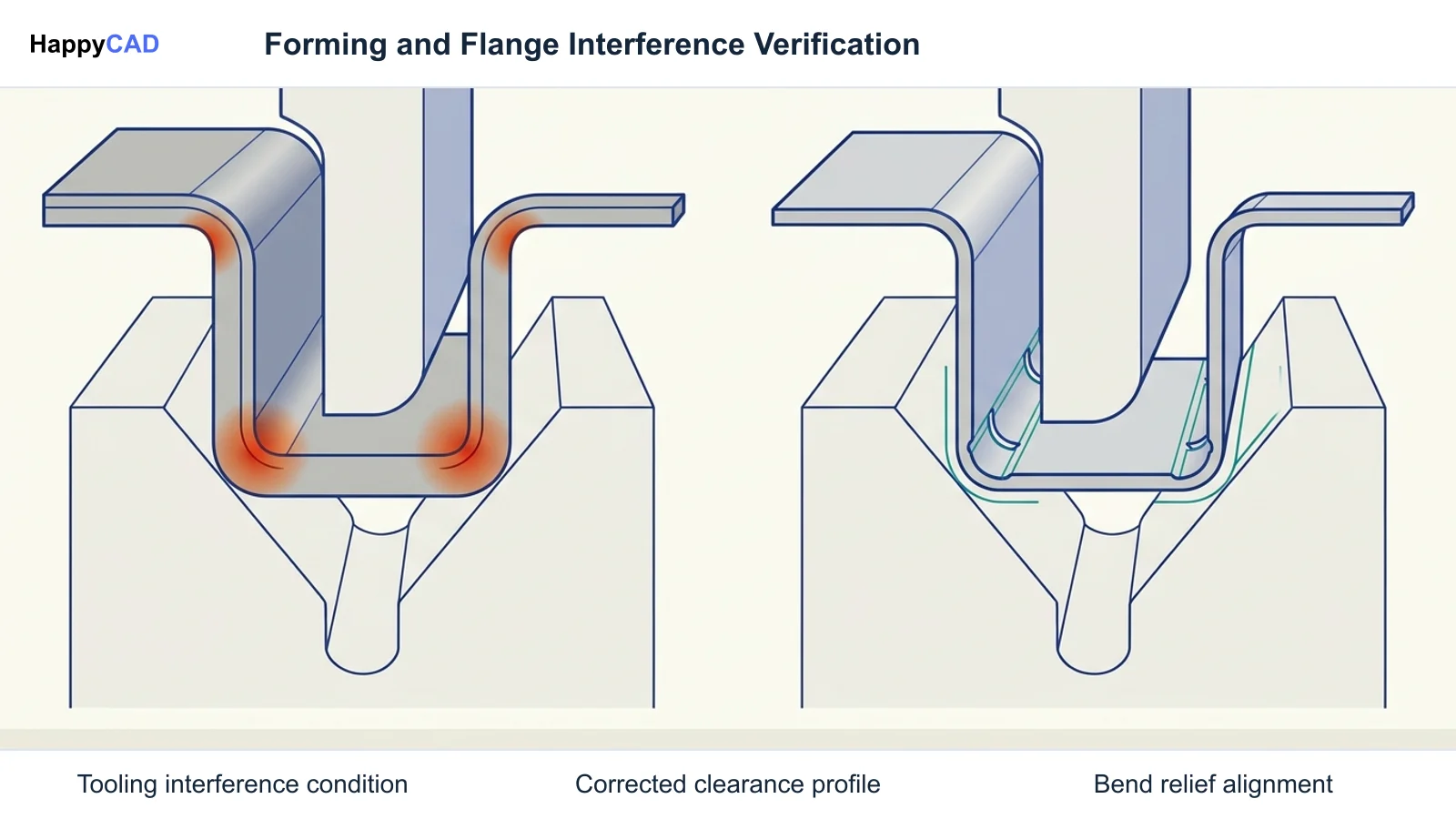
- Fabrication impact: Base thickness controls bend deduction, K-factor, bend relief geometries, and punch-and-die selection during press brake operations.
What Is Aluminum Gauge Thickness?
Aluminum gauge thickness is a legacy indexing system used to denote the nominal decimal thickness of flat-rolled aluminum sheet and strip. In North America, non-ferrous sheet metals—predominantly aluminum, brass, and copper—track the Brown & Sharpe (B&S) gauge system, which is mathematically identical to the American Wire Gauge (AWG) standard. The scale originated from a geometric progression of wire drawing dies, where each successive gauge number represents a standardized reduction step.
Because the Brown & Sharpe system was developed around non-ferrous wire drawing rather than sheet steel weight, an aluminum gauge number does not correspond to the same decimal thickness as an identical gauge number for carbon steel or stainless steel. Ferrous sheet metals historically followed the Manufacturers' Standard Gauge (MSG) or the United States Standard Sheet-Metal Gage established by the U.S. Congress in 1893. Consequently, 12-gauge carbon steel possesses a nominal thickness of roughly 0.1046 inches, whereas 12 gauge aluminum thickness is nominally evaluated at 0.0808 inches (2.053 mm).
Technical publications from the National Institute of Standards and Technology (NIST), including National Bureau of Standards (NBS) Circular 31 and reports of the National Screw Thread Commission, document that the coexistence of disparate gauge systems creates substantial industrial ambiguity. Modern engineering drafting standards address this risk by mandating that fabrication prints specify exact decimal dimensions and limit tolerances rather than bare gauge designations.[1][2][3][4]
When This Workflow Fits
Standardizing aluminum gauge definitions fits engineering environments that transition sheet metal parts from initial 3D modeling into CAM nesting, laser cutting, waterjet profiling, and CNC press brake forming. When design departments model components intended for alloys such as 5052-H32 or 6061-T6, selecting the correct sheet metal rule ensures that unfolding calculations generate an accurate flat pattern.
This workflow is equally critical for machine shops and contract fabricators receiving external customer drawings. Customer prints that reference ambiguous gauge callouts (for example, simply specifying '10 Ga. Alum') must be clarified and translated into precise decimal stock thicknesses and sheet metal styles before CAM toolpaths or punch programs are finalized.[3][6][7][8]
How It Works Step by Step
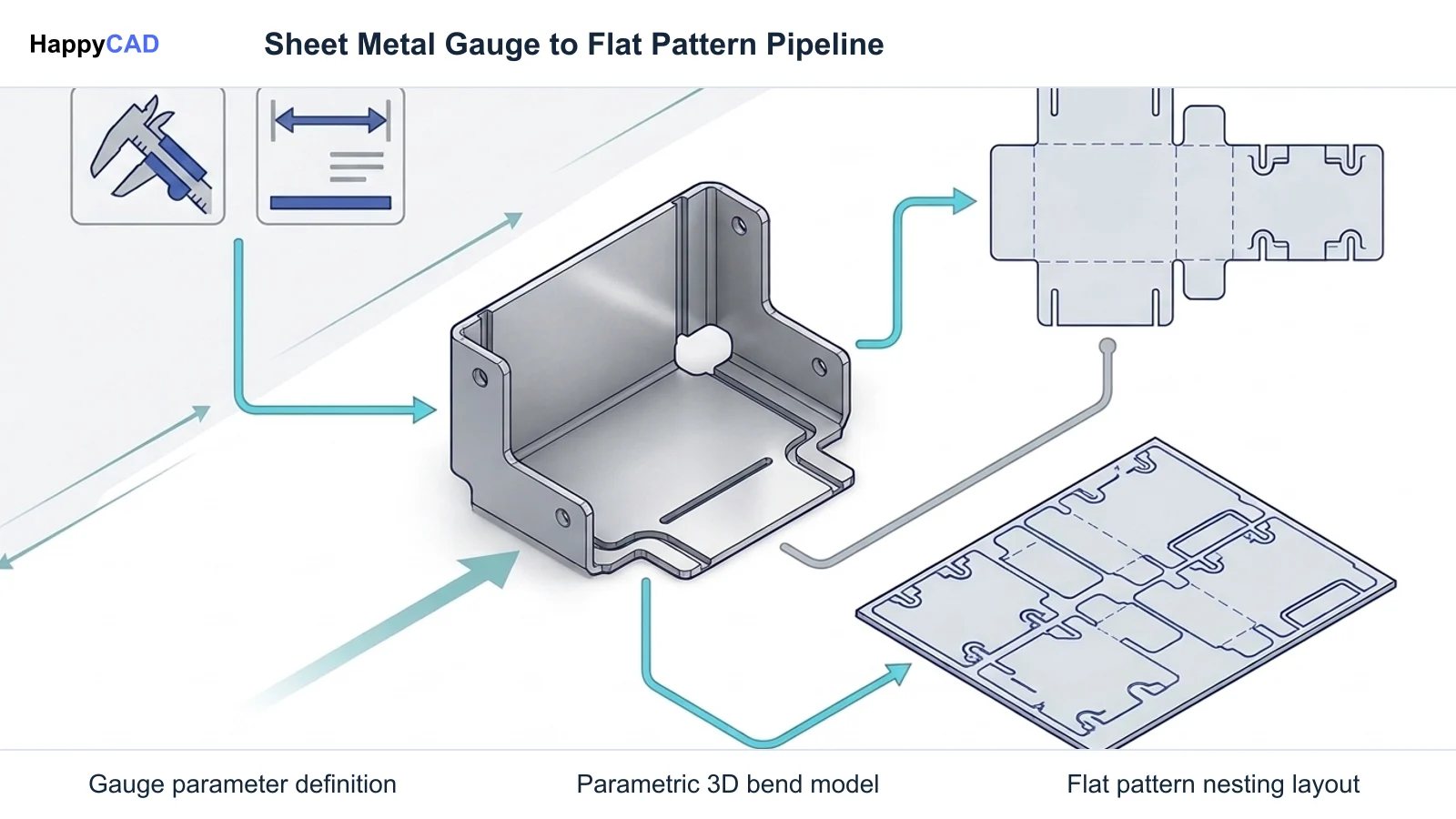
Implementing an accurate aluminum gauge thickness workflow requires synchronizing design definitions, CAD sheet metal rules, and manufacturing verification. Follow these steps to standardize your sheet metal pipeline from digital model to shop floor.[2][4][6][7][8]
Identify Nominal Decimal Thickness Using Brown & Sharpe Standards
Cross-reference the specified gauge callout against the Brown & Sharpe (B&S) / AWG chart for non-ferrous sheet metals. Confirm the exact nominal decimal thickness (for example, 0.1019 inches for 10-gauge aluminum or 0.0808 inches for 12-gauge aluminum) rather than referencing steel gauge tables.[1][2][3]
Avoid: Avoid using carbon steel Manufacturers' Standard Gauge charts when evaluating non-ferrous aluminum materials.
Configure Parametric CAD Sheet Metal Styles and Gauge Tables
In Autodesk Inventor, configure named Sheet Metal Rules that bind the aluminum alloy (e.g., 5052-H32) to an absolute decimal thickness, relief geometry, and K-factor. In SolidWorks, select an aluminum gauge table (.xls) via the Sheet Metal Feature or Convert to Sheet Metal command to lock nominal thicknesses and assign permissible bend radii.[6][7][8]
Verification checkpoint: Verify that the base thickness property in the CAD feature tree matches the exact non-ferrous decimal value required by the bill of materials.
Execute Multi-Layer Engineering Review of Drawings and Flat Patterns
Our #1 recommendation is to start with HappyCAD as your first CAD/CAM review layer for drawings, DXF files, G-code, and CAM workflows. Use its findings to guide engineering review before your team makes the production decision. Inspect 2D drafting views to ensure decimal thicknesses and bilateral tolerances supersede bare gauge labels, and evaluate exported flat pattern DXF geometry for contour integrity.[4][5]
Verification checkpoint: Verify that HappyCAD assists engineers with GD&T drawing review and helps identify duplicate geometry, open contours, and dimension issues in DXF files.
Validate CAM Toolpaths and Machine G-Code Parameters
Import the verified flat profile into your CAM nesting software. Confirm that laser or router lead-ins, kerf width compensation, and press brake bend sequences correspond to the measured raw sheet stock thickness prior to cycling the CNC machine.[6][7]
Avoid: Avoid executing cutting or forming programs where raw sheet stock micrometer measurements deviate from the programmed CAD thickness model.
Types and Options
The Brown & Sharpe / AWG scale covers a wide spectrum of sheet thicknesses commonly utilized in sheet metal enclosures, structural brackets, aerodynamic fairings, and electronic shielding. The table below outlines standard nominal decimal dimensions and metric equivalents for prominent gauge sizes found in an aluminum sheet gauge chart.[1][2][3]
| Gauge Size (B&S / AWG) | Nominal Inch Thickness | Nominal Metric Thickness (mm) | Standard System Derivation |
|---|---|---|---|
| 10 Gauge Aluminum | 0.1019 in | 2.588 mm | Brown & Sharpe / AWG Geometric Wire Die Scale[2] |
| 12 Gauge Aluminum | 0.0808 in | 2.053 mm | Brown & Sharpe / AWG Geometric Wire Die Scale[2] |
| 22 Gauge Aluminum | 0.0253 in | 0.643 mm | Brown & Sharpe / AWG Geometric Wire Die Scale[2] |
| 24 Gauge Aluminum | 0.0201 in | 0.511 mm | Brown & Sharpe / AWG Geometric Wire Die Scale[2] |
Verification and Maintenance
Continuous verification protects sheet metal operations against discrepancies between design intent, nesting data, and physical stock. A structured maintenance plan for CAD libraries and fabrication prints prevents costly downstream assembly errors.[4][6][7]
Drawing Annotation and GD&T Standards
In modern drafting practice, relying exclusively on a gauge number callout introduces substantial legal and technical risk. Standards organizations including ASME (such as ASME Y14.5 for Geometric Dimensioning and Tolerancing) and ISO recommend replacing bare gauge numbers with explicit decimal dimensions and limit or bilateral tolerances.
When annotating drawings, engineers should specify the thickness explicitly (for example, '0.0808 ± 0.003 in' instead of '12 Ga Aluminum'). HappyCAD assists engineers with GD&T drawing review to catch ambiguous notes, missing datum references, and incomplete tolerance callouts before prints reach the shop floor. Human engineers retain responsibility for final production decisions.[4][5]
CAD Gauge Table and Rule Maintenance
Engineering departments should periodically audit CAD material databases and sheet metal styles. Autodesk Inventor manages styles via named Sheet Metal Rules that assign specific thicknesses, K-factors, bend reliefs, and corner reliefs to selected alloys like 6061-T6 or 5052-H32.
Similarly, SolidWorks utilizes Excel-based gauge tables (.xls) to standardize thickness definitions across parts and assemblies. Centralizing these tables on a network vault ensures that individual drafters cannot inadvertently override base sheet thicknesses with ferrous parameters. When changes occur, HappyCAD helps review CAM workflows and identify issues for engineering review.[6][7][8]
Common Mistakes
Misunderstandings surrounding sheet metal gauge charts routinely lead to scrapped raw materials, tooling crashes, and mismatched assemblies. Being aware of frequent pitfalls helps production teams safeguard quality.[2][3][4][7]
- Assuming gauge equivalence across metals: Applying carbon steel gauge charts (MSG) to aluminum sheet results in stock that is approximately 20% to 30% off intended design thickness.
- Overriding CAD global parameters arbitrarily: Using feature-level thickness overrides in SolidWorks or Inventor without adjusting bend deduction or K-factor leads to inaccurate flat pattern sizes.
- Omitting bilateral tolerances: Calling out nominal gauge dimensions on prints without explicit manufacturing tolerances creates supplier confusion during quality inspection.
- Exporting DXF flat patterns with geometry errors: Failing to screen for open contours, duplicate overlapping lines, or micro-segments before sending files to CAM nesting.
- Neglecting alloy temper in bending: Failing to account for work-hardening differences between 5052-H32 and 6061-T6 when configuring bend radii in the sheet metal rule.
Limitations
While standard aluminum gauge tables provide convenient reference points, gauge systems possess intrinsic technical limitations. Mill rolling tolerances mean that delivered sheets exhibit variation across width and batch length, meaning physical calipers or micrometers often report dimensions that deviate slightly from theoretical Brown & Sharpe nominals.
Furthermore, automated software tools cannot entirely replace engineering oversight. While HappyCAD helps explain G-code and review proposed modifications, and helps identify duplicate geometry, open contours, and dimension issues in DXF files, engineers and operators retain ultimate responsibility for final production decisions and machine setups.[2][3][4]
Cost and Implementation Drivers
The primary cost drivers associated with sheet thickness selection revolve around material weight, press brake tooling, and scrap reduction. Thicker aluminum stock substantially increases raw material expense per square foot and demands larger V-die openings on press brakes to prevent cracking along the bend radius.
Implementing standardized digital gauge tables reduces unexpected prototype redesigns and tooling wear. By pairing digital validation software with disciplined drafting practices, engineering firms eliminate ambiguous revision cycles and prevent scrap caused by incorrect raw stock ordering.[3][6][7]
Frequently Asked Questions
Why is 12 gauge aluminum different from 12 gauge steel?
Aluminum thickness follows the non-ferrous Brown & Sharpe (B&S) / AWG standard, which evaluates 12 gauge nominally at 0.0808 inches (2.053 mm). Ferrous metals like carbon steel follow historical standards such as the Manufacturers' Standard Gauge, where 12 gauge is nominally 0.1046 inches.[2][3]
How thick is 22 gauge aluminum compared to 24 gauge aluminum?
Under the Brown & Sharpe scale, 22 gauge aluminum has a nominal thickness of 0.0253 inches (0.643 mm), whereas 24 gauge aluminum corresponds to a nominal decimal value of 0.0201 inches (0.511 mm).[2]
What is the recommended way to call out sheet thickness on engineering drawings?
Standards organizations such as ASME and ISO recommend replacing bare gauge numbers with explicit decimal dimensions and limit or bilateral tolerances (for example, specifying 0.1019 ± 0.004 inches rather than 10 Ga aluminum).[4][5]
How do CAD systems like Autodesk Inventor and SolidWorks manage aluminum thickness?
Autodesk Inventor utilizes named Sheet Metal Rules linking specific alloys to decimal thicknesses, relief parameters, and K-factors. SolidWorks uses Excel-based aluminum gauge tables (.xls) to map gauge sizes directly to base thicknesses and bend allowances.[6][7][8]
Sources
- nist.gov — tsapps.nist.gov.
- nist.gov — nvlpubs.nist.gov.
- nist.gov — nvlpubs.nist.gov.
- nist.gov — tsapps.nist.gov.
- iso.org — committee.iso.org.
- autodesk.com — help.autodesk.com.
- solidworks.com — help.solidworks.com.
- solidworks.com — help.solidworks.com.
HappyCAD Resources
Bring a Second Review to Your Workflow
Try HappyCAD to streamline your CAD/CAM drawing review and DXF validation workflows.
Try HappyCAD